
AnovaBuy Spreadsheet, written as the checks you tick before each button
Pick a product from the shelves, then take AnovaBuy one screen at a time: account, order, warehouse, parcel, doorstep. Every screen gets a short list of things to confirm before you click.
Open the tick-listHandbook from sign-upBoth service-fee figures
Seven stops, in the order AnovaBuy shows them
- Account: email, emailed code, agreement box
- Product page: size, colour, notes
- Confirm Order: country, remark, extra photos
- Warehouse: photos, five-day return clock
- Parcel: which items, packing options
- Check Out: line, weight, shipping payment
- Doorstep: open it in front of the courier
Shelf tiles carrying an order-screen hint
Each shelf note says what to ask for or tick when that kind of product goes into an AnovaBuy order.
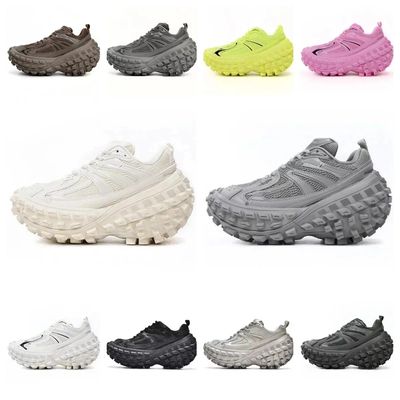 SneakersAsk for one sole photo. Shoe boxes add weight unless you have them removed.
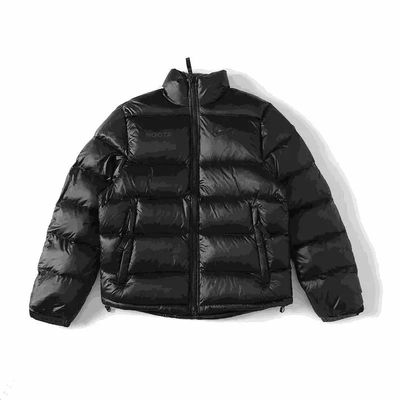 Jackets and coatsPuffers are billed by size as much as weight; a packing rehearsal shows which.
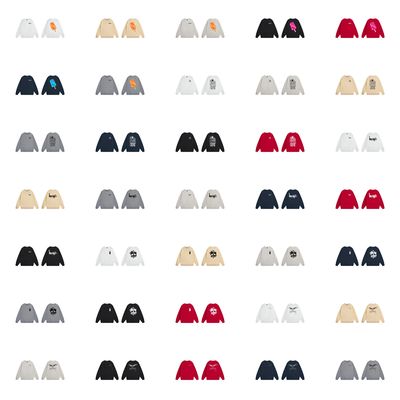 HoodiesCompare the chest width in centimeters, not the letter on the tag.
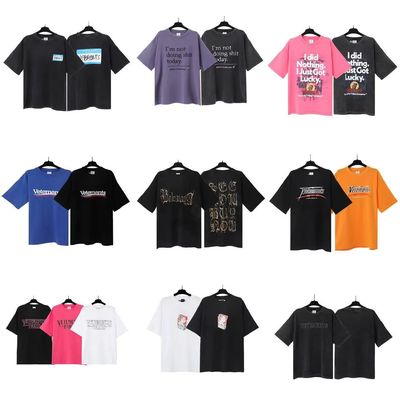 T-shirtsWrite the print position you expect in the order notes.
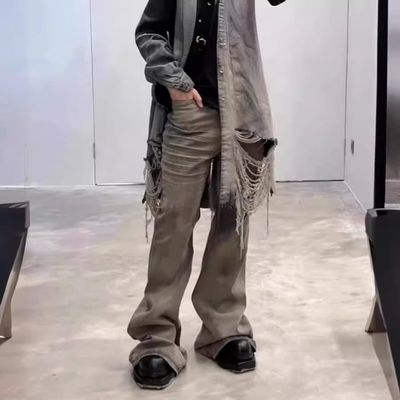 JeansPut waist and inseam in centimeters in the notes box.
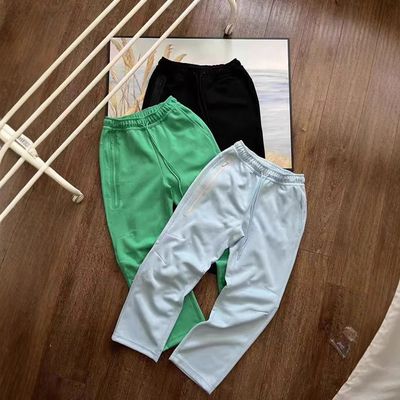 SweatpantsElastic waists hide sizing; a flat measuring photo costs CNY 1.
 WomenswearSeller size charts often go by body weight, in jin or in pounds.
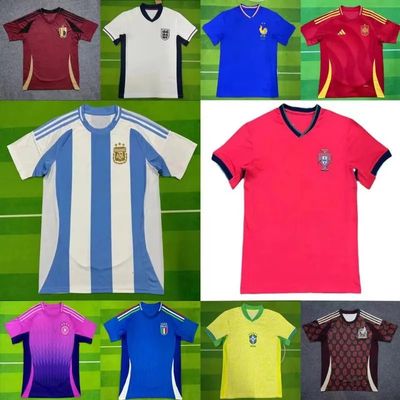 JerseysRequest a close photo of the crest and the printed name.
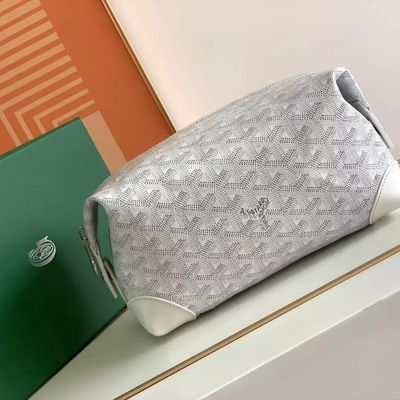 BagsAsk whether a dust bag or box ships with it; both cost grams.
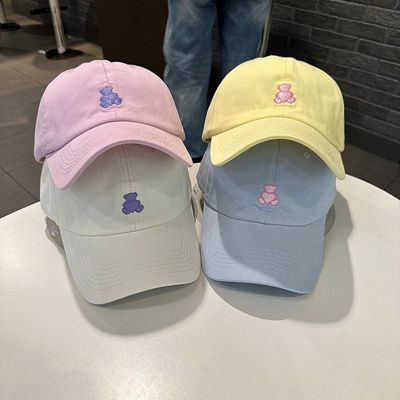 HatsCrowns get crushed; reinforced packing is a parcel option.
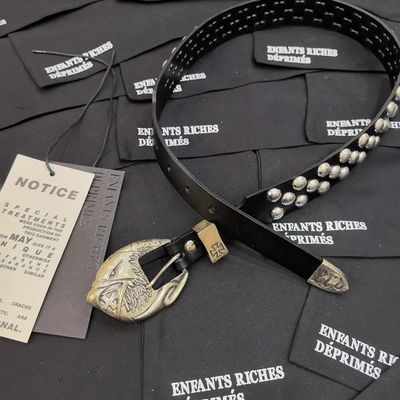 BeltsBuckle style and strap length are usually two separate choices.
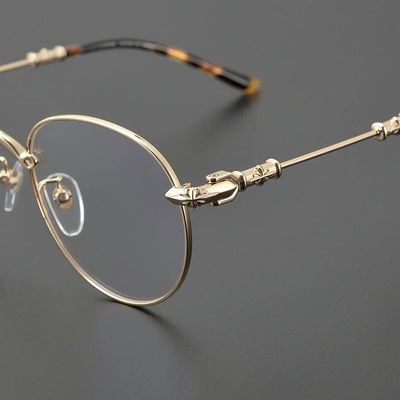 EyewearBreakage claims are refused for fragile goods; only loss counts.
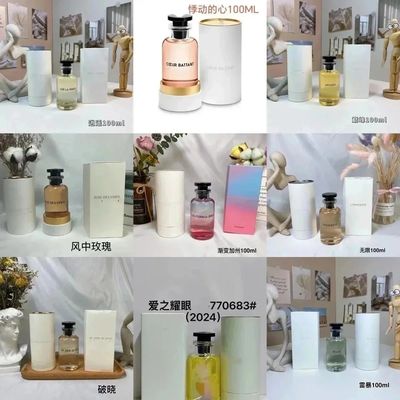 PerfumeNeeds a perfume line. Saudi Arabia had none in our replay.
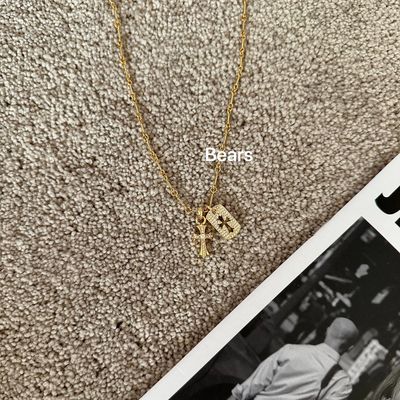 JewelleryTiny pieces: one extra close-up usually settles the clasp.
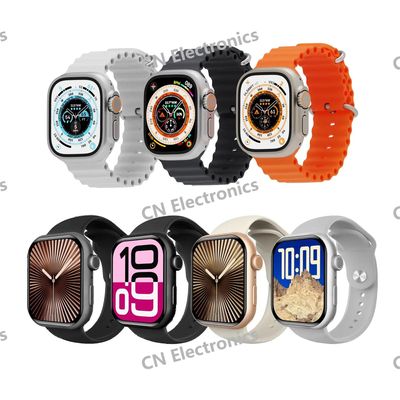 WatchesA watch battery moves the parcel onto a battery line.
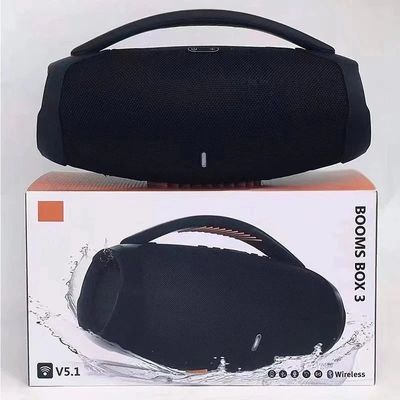 ElectronicsInspectors check the outside only; nothing is switched on.
Why use this Spreadsheet before opening an AnovaBuy order?
This AnovaBuy Spreadsheet turns a broad product catalogue into preparation for an order. Sixteen shelves help you find candidates; each shelf note identifies a question such as chest width, buckle length or protective packaging. The handbook then takes that question to the screen where you can act on it. You arrive at checkout with an exact listing, option and request instead of only a saved photo.
Try two hoodie listings. Compare the selected size in centimetres, the price of that exact option and the seller's domestic postage. If one chart leaves the chest measurement unclear, write a precise photo request. After purchase, compare your own warehouse photos with the option you chose. A listing photo or another buyer's QC image can suggest what to inspect; it cannot clear your item for shipping.
The tick-list and dated planning tools keep the second payment in view while you browse. The ticks stay in this browser; they do not read AnovaBuy's order status. Budget for goods, seller postage, optional checks and the international parcel, then replace estimates with the account quote as information arrives.
You can use this discovery and comparison method before deciding on an agent. The full shortlist-to-parcel example explains what to carry across, what to verify again and when to stop adding items. Purchases, stock reservations and support remain on the agent's own site.

The preflight board: three ticks per stop
This is the core of the site. Each card names the AnovaBuy button you are about to press and the three checks we would make first. Ticks are kept in your own browser, so you can close the tab after paying for goods and pick up again when the warehouse photos arrive a few days later.
Tick the first box on the Account card to begin.
The long version has five checks per stop and a reset button
The handbook in order, plus one short from the warehouse floor
The handbook follows the ten steps AnovaBuy publishes in its own beginner guide, grouped into the seven stops above. Every chapter starts with the screen you will see, quotes the official wording where it matters, and ends with what can go wrong at that stop. If you prefer to watch first, AnovaBuy posts short warehouse clips on its YouTube channel; this one shows a parcel being readied for Romania.
The clip is an advert, so watch it for what it shows rather than what it says: goods arrive in plain cartons, staff open them, and a single outbound box is taped up for one buyer. That matches the help center, which says the original courier box is thrown away after inspection and goods are re-bagged in AnovaBuy self-sealing bags, except fragile or oversized pieces.
Why choose AnovaBuy for a purchase you want to check in stages?
AnovaBuy is useful when you want to choose goods from Chinese marketplace sellers, then make the shipping decision after the goods reach a warehouse. Its buying service places the seller order; the warehouse receives and photographs the goods; you choose which stored items travel together. That creates a useful pause between buying a product and sending it overseas.
The reason to consider AnovaBuy specifically is how its published workflow accommodates different starting points. A product link starts a buying order; Forwarding Order is for a purchase you arrange yourself; Custom Order is for a request that needs a separate sourcing discussion. Its help centre also distinguishes ordinary inspection from a precise photo request. You can decide which path and which evidence you need before committing money.
For example, suppose you want a hoodie and a rigid bag from different sellers. Ask for the hoodie measurement when ordering, inspect both arrivals, and decide whether the bag needs protective packing before combining them. The benefit is a coordinated purchase and inspection process, not a promise that combining always costs less.
A direct retailer may suit one urgently needed item with clear sizing and a convenient return address. Another agent may suit a destination or inspection service AnovaBuy cannot offer. Use the buying-versus-forwarding comparison and check the itemised fee total, including the unresolved service-fee wording, before choosing.
Check both AnovaBuy payments and the service-fee conflict
You pay AnovaBuy twice. Payment one buys the goods plus the seller's courier ride to AnovaBuy. Payment two comes after warehousing and parcel submission and buys the international leg for a parcel built from whatever has arrived. On the service fee, AnovaBuy currently says two different things: one help article lists 6 percent of the product amount, another promises zero purchasing service fee. Both pages were live on October 23, 2026, so read the itemized total on your own Confirm Order screen before paying.
Before payment one, save the itemised order total and resolve an unexplained service fee. Before payment two, check the parcel’s actual route, packing and billed weight. Do not reuse an old tutorial’s amount as a quote; fee examples explain the variables and unresolved source difference.

Tools for the dates and for the shipping quote
Three small tools sit on one page. The tick-list keeps every check from the handbook in one place. The warehouse clock turns the day your goods go In Stock into the last day for a no-reason return and the last day of free storage. The line finder shows the international lines AnovaBuy quoted for twenty destinations when we replayed its freight tool on October 23, 2026.

When a box refuses to tick
Sooner or later a check fails: the verification email never comes, the seller is out of stock after you paid, a photo shows the wrong colour, tracking sits still for a week. The help desk page collects the official answers for those moments, a glossary for the words AnovaBuy uses on its order screens, and the three email addresses it publishes for support, business and rights complaints.
For news, the updates page logs official notices such as the March 20, 2026 upgrade announcement that promised new users USD 400 in coupons, plus what we changed on this site and when.
Account first, then the first tick
Sign-up wants an inbox you can reach, a password entered twice and the code AnovaBuy emails you. The invite field can stay blank, and a Google or Discord account works as a shortcut. Allow a minute; the handbook chapter on accounts covers what to check on the way.